Steam Controller - Official Overview and Quick Start Guide
Audio Summary
AI Summary
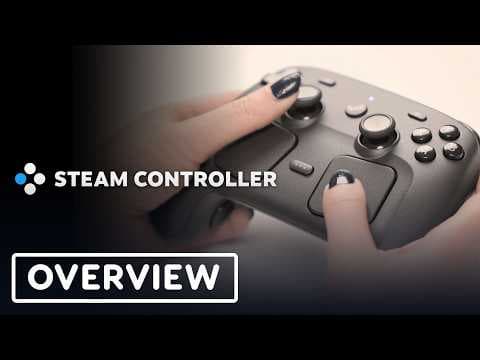
This video provides an overview of the Steam Controller, its contents, setup, and key features. Inside the box, you'll find the Steam Controller itself, the Steam Controller Puck (which acts as a wireless receiver and charging station), a USB-A to USB-C cable, and an information booklet.
To get started, connect the Puck to your PC using the USB-C cable. Turn on the controller by pressing the Steam button, and it will automatically connect wirelessly through the Puck. The controller's LED will turn solid white when connected. Pressing the Steam button again brings up Big Picture Mode, a controller-friendly Steam interface. It's important to install the latest firmware updates for both the Puck and the controller, following a specific update procedure.
The Steam Controller includes standard gamepad controls, along with advanced features like two customizable trackpads, a gyro sensor for motion input, four remappable grip buttons, and capacitive grip sensors on the handles to detect touch. The trackpads can function as a precise mouse substitute or as customizable radial menus. The GripSense technology, which detects finger presence on the grips, can be used to enhance gyro gameplay by acting as a ratchet or for quick actions like bringing up menus or weapon wheels.
Charging is simple: place the controller onto the Puck, where it magnetically snaps into place. To resume gameplay, just pick up the controller and press the Steam button. More information on the controller's configuration options can be found via a provided link.