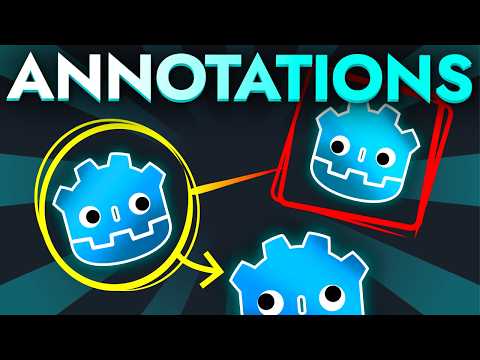
Your players will love this annotation feature!
Audio Summary
AI Summary
This tutorial demonstrates how to build a basic annotation system in Godot, allowing players to draw shapes like lines, circles, and rectangles directly onto game visuals. The presenter, who developed a similar tool for their puzzle game "Locktail," explains that this system relies on storing simple data, capturing user input, and utilizing Godot's 2D drawing functions.
The core of the system is a script attached to a control node that covers the entire screen. This script manages various parameters and data structures. An `enum` defines the available annotation tools, starting with "line" and expanding to include "circle," "rectangle," and "eraser." A `stroke_width` variable, adjustable in the inspector, controls the thickness of drawn elements. A `drawing` boolean flag indicates whether the left mouse button is pressed, signifying active drawing. The `current_tool` variable stores the selected tool, and `current_element_array` holds the specific data needed for the annotation being created, which varies by tool type. Finally, a `data_dictionary` stores all completed annotation elements and the one currently in progress, making it easy to redraw everything and also enabling saving and loading annotations between game sessions.
Initially, the script focuses on drawing lines. The `_ready` function sets the default tool to "line." The `_input` function handles user events, detecting mouse button presses and releases to toggle the `drawing` flag and initialize `current_element_array`. When drawing begins, `current_element_array` for a line is initialized with the current mouse position as both the start and end point. Mouse motion events, while `drawing` is true, update the second element of `current_element_array` to the new mouse position, creating a reactive line that follows the cursor. The `_draw` function iterates through stored line data and uses Godot's `draw_line` function to render them on screen. Releasing the mouse button finalizes the annotation.
The tutorial then progresses to adding a "circle" tool. This involves adding a "circle" value to the tool `enum`, a new "circles" array to the `data_dictionary`, and updating the `_draw` function to iterate through and draw circles using `draw_circle`. The `_input` function is modified to handle the circle tool. When drawing starts, `current_element_array` is initialized with the mouse position as the center and a radius of 0. During mouse motion, the radius is recalculated as the distance between the initial center position and the current mouse position.
To switch between tools, a simple UI is created in the editor with buttons for "line" and "circle." These buttons' "pressed" signals are connected to the `pick_tool` callback function in the annotation script, with the corresponding tool name ("line" or "circle") bound as an argument. This allows users to select which tool they want to use.
Adding the "rectangle" tool follows a similar pattern. A "rect" value is added to the `enum`, and a "rects" array to the `data_dictionary`. The `_draw` function uses `draw_rect`, requiring a `Rect2` object. For rectangles, `current_element_array` stores the top-left corner and the opposite corner. The `_input` function handles initialization with the mouse position for the first corner and updates the second corner during mouse motion. A new button is added to the UI for the rectangle tool, connected to `pick_tool` with the "rect" argument.
The next crucial tool introduced is the "eraser." This involves adding "eraser" to the `enum` and modifying the `_input` function. When the eraser is active, a new `erase` function is called during mouse clicks and movements. This function filters the stored annotation data (lines, circles, rects) to remove elements that intersect with the eraser's current position. To make the eraser more intuitive, it's given a small radius (`eraser_size_threshold`) so players don't have to be pixel-perfect. The `erase` function checks for intersections within this radius, using specific calculations for lines (distance to segment), circles (distance to center relative to radius), and rectangles (distance to edges). A new button for the eraser is added to the UI.
To improve the system, two key enhancements are made. First, a `clean` function is introduced to remove empty or redundant annotation elements from the data lists. This function is called in the `_draw` method to maintain data integrity, preventing the storage of non-functional annotations (e.g., lines with identical start and end points, circles with zero radius). Second, the eraser's usability is improved by adding a visual indicator. A `TextureRect` node with a sprite is added to the annotation hierarchy and shown/hidden when the eraser tool is selected. During mouse movement with the eraser active, this sprite's position is updated to follow the cursor, providing clear feedback on the eraser's active zone.
Finally, the system is enhanced to support multiple annotation colors. A `current_color` variable is added to store the selected color, and a `pick_color_callback` function is created. New color buttons are added to the UI, with their pressed signals connected to `pick_color`, passing the chosen color as a bound argument. In the script, the `current_color` is added as a third element to `current_element_array` when an element is initialized. The `_draw` function is updated to use this stored color instead of a hardcoded red.
The tutorial concludes by summarizing the developed annotation system, which now includes line, circle, and rectangle tools, an eraser, and multiple color options. The presenter highlights its versatility for various game genres, allowing players to mark points of interest, organize thoughts, or solve puzzles. The possibility of a follow-up tutorial covering a freehand drawing tool is also mentioned.