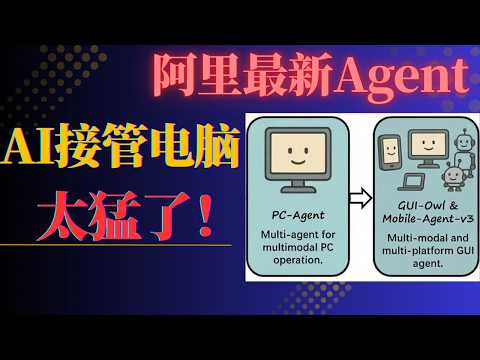
AI一键接管电脑?阿里Mobile Agent实战教程:从0到1实现电脑自动操作(含性能优化)| Hex-电脑课堂
Audio Summary
AI Summary
This video tutorial demonstrates how to set up and run an intelligent agent on a computer, building upon a previous demonstration of a mobile agent. The core concept is to allow AI to control the computer and perform tasks autonomously, mirroring the functionality shown previously with a mobile application.
The presenter starts by showcasing a practical example: the AI creating a document using WPS Office, writing an introduction about Alibaba, searching for Alibaba's logo online using the Age browser, and then copying that logo into the document. The demonstration highlights the AI's analysis process on the left and its execution of the task on the right, showing the document creation, online search, image retrieval, and pasting into the document.
The tutorial then delves into the technical setup for the computer-side agent. The presenter outlines a series of steps, emphasizing that some can be skipped due to automatic installations. Key prerequisites include installing WS2 (Windows Subsystem for Linux), Git, and Miniconda. The presenter notes that they have detailed these installations in a previous episode.
A crucial step involves downloading a model. The presenter mentions that their local setup with a 16GB graphics card can only run a 4B model, while larger models like 32B exist and offer greater intelligence. After downloading the model, the user needs to create a virtual environment and install necessary Python dependencies.
The tutorial then focuses on modifying source code to ensure smoother operation. Two specific files are highlighted: "for PC" and "utils.py." In "for PC," lines 245 to 247 need to be deleted. In "utils.py," the `timesleep` parameter on line 283, which defaults to 2 seconds, should be reduced to 0.1 seconds to improve user experience by reducing waiting times between actions. The `history_n` parameter on line 587, which determines how many previous conversation turns are kept in context, can be adjusted; the presenter sets it to 4 but suggests users can modify it based on their system's performance.
Following the code modifications, the next step is to start the server. This involves executing a command that specifies the Python interpreter, the module to run, the path to the downloaded local model (e.g., the 4B model), the service model name, and parameters like `trust_remote_code`, `max_model_context_length`, and GPU utilization percentage. The presenter demonstrates the server startup, showing the VLM symbol and monitoring GPU memory usage as weights are loaded, which reaches around 15.5%. The server address is noted as 010:8000.
Once the server is running, the client software needs to be developed. The presenter explains that the client code should be copied to a Windows machine, and a command prompt (CMD) should be opened within that directory. They clarify that using CMD on the Windows side is necessary because running within WS2 might interfere with the client's screenshot capabilities on the physical Windows machine.
Before executing client commands, the environment needs to be prepared on the Windows side, mirroring the virtual environment setup done earlier. The presenter activates their "mobile agent" virtual environment.
A client command example is then provided, which uses Python to execute a script. This command includes a placeholder for an API key (as it's a local operation), the basic URL of the server (http://localhost:8000/v1), and the path to the downloaded 4B model. The core instruction for this task is to open a specific folder on the desktop, create a new TXT file named "note.txt," enter specific content, save the file, and then close it.
The demonstration then shows the AI performing these steps. It opens the specified desktop folder, creates a new TXT file, renames it to "note.txt," and then opens the file to input the content: "This is the first test file. All punctuation marks have been included." The AI then saves the file and exits. The presenter notes that the 4B model, while capable of completing simple tasks, can sometimes make minor errors, such as repeating input or incorrect naming, but it has error correction mechanisms. They observe a slight detour where the AI initially renames the file incorrectly before correcting it.
The presenter highlights that the input method for text on the computer is straightforward using the default system input, unlike the mobile version which might require specific input methods. After the content is written, the AI saves the file and closes it. The process is visually confirmed by a preview window on the right showing the saved file and the AI successfully exiting the application. The CMD window is then closed.
The tutorial breaks down the task into 10-13 steps, all of which are successfully completed. The presenter reiterates that subsequent tasks would follow a similar pattern.
The summary concludes with key takeaways: the task can be completed successfully, but the speed is limited by local computational power and the 4B model's intelligence. The mobile version was faster due to smaller screenshot image processing. For better performance and accuracy, using larger models (8B, 32B) is recommended if computational power allows. The presenter encourages viewers to like, follow, and share the video if they found it helpful and offers to send the documentation via email upon request. Related resources will be posted in the comments section.