What the font?!?!
AI Summary
In this video, we explore new features for drawing text in P5 2.0, specifically focusing on text to contours, text to model, and text weight.
First, we begin with a classic P5 sketch, drawing text at an X and Y position with a specified size. The font can be changed using `textFont` with any locally installed system font. To use a wider selection of fonts, `fonts.google.com` is suggested as a starting point. We demonstrate loading a font like "Roboto" from Google Fonts. In P5 2.0, the `loadFont` function directly supports loading web fonts using their URL, eliminating the need to modify `index.html` or use a preload function if `async`/`await` is employed in `setup`. If `await` is used in `setup`, the `async` keyword must be added to the `setup` function declaration. An initial attempt to load "Roboto" fails due to the sketch not being updated to P5 2.0, which is then corrected.
Next, we delve into variable fonts, a new feature allowing for dynamic control over font properties. We filter Google Fonts for "variable" technology and select "Gen Goes." The loaded font URL includes a `weight` property, indicating a variable weight between 100 and 900. This means the font's weight can be assigned a numeric value, rather than just discrete options like "bold" or "light." This is covered in the P5 reference under `textWeight`. We experiment by setting the `textWeight` to 100 and 900, and then map it to the mouse's X-position for interactive control. Further, we demonstrate assigning the `textWeight` to a sine wave, causing the text to autonomously expand and contract, similar to a demonstration by Kit Kenok, the P5S lead.
The video then moves to `text to contours`, a function for tracing the outlines of letter forms. An old P5 1.5 example using `textToPoints` is shown, which is then updated to P5 2.0, revealing it is broken with the new version. The new function in P5 2.0 is `textToContours`. While `textToPoints` still exists, it serves a different purpose; more information is promised in the video description. `textToContours` returns an array of arrays of points, outlining a string of text. Each point has X and Y coordinates for location, and an `angle` (previously `alpha` in the reference) property representing its path angle. The function also accepts an optional fourth parameter for `options`, which can include `sampleFactor` and `simplifyThreshold`.
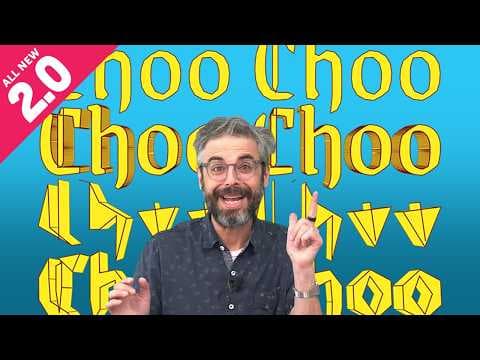
An attempt to use "Grenzigot" with `textToContours` fails because Google Fonts are served in WAFT2 format, which P5 doesn't support out-of-the-box for `textToContours` (though an add-on exists, and future changes are possible). To proceed, a non-variable weight version of the font (regular) is downloaded and uploaded locally. Loading this local font successfully provides an array of arrays, with each inner array representing the points for a single letter. We iterate through these points and draw them using `point()`, initially at (0,0) and then correctly positioned at (200,200) with a larger font size, revealing the outline of "Choo Choo."
We then explore the `sampleFactor` option. The P5 reference initially describes `sampleFactor` as "the ratio of the text path length to the number of samples," with higher values producing more points. However, this is identified as an inconsistency; the correct interpretation is that the number of sampled points is approximately equal to the path length multiplied by the `sampleFactor`. So, a higher `sampleFactor` indeed yields more points. We demonstrate this by mapping `sampleFactor` to `mouseX`, showing how increasing the factor increases the density of points along the text outline.
The `simplifyThreshold` option, intended to remove collinear points, is also mentioned. While it doesn't work in the demonstration due to a bug (since fixed), its purpose is explained: to simplify the path by removing redundant points that lie on the same line segment, based on a threshold angle.
The video then revisits the earlier coding challenge that was broken in P5 2.0. The solution involves loading the font with `async`/`await` and using `textToContours` instead of `textToPoints`. A nested loop is required because `textToContours` returns points as individual letters, unlike `textToPoints` which returned one large array.
A deeper look into `textToContours` reveals that each point not only has X and Y coordinates but also an `angle` property. We demonstrate drawing the letter forms by connecting these points using `beginShape()`, `vertex()`, and `endShape()`. More interestingly, we show how to use the `angle` property. By drawing thin rectangles at each point of a letter (specifically "O," noting that some letters have multiple contours), and then rotating each rectangle by its corresponding point's `angle` using `push()`, `translate()`, and `rotate()`, we create a visual representation of the contour's orientation along the path. This highlights the power of `textToContours` in providing detailed path information.
Finally, we explore `text to model`. This feature requires the 3D renderer, WebGL. The text is initially positioned at (0,0), which is the center in WebGL. `orbitControl` is added to allow navigation in 3D space. Instead of `text()`, we use `font.textToModel()`, providing the text, X and Y positions (0,0), and a width. The result is a 3D model of the text. The `width` parameter is shown to control how the text fits within a bounding box. Applying `fill()` colors the model. The key advantage is the ability to apply 3D functionalities. The `extrude` option adds depth to the text, making it appear thick. Setting `extrude` to a value like 50 creates a noticeable 3D effect. `sampleFactor` can also be applied to `textToModel` to control the level of detail in the 3D geometry. A higher `sampleFactor` results in more detailed curves, while a lower one makes the geometry more primitive.
In summary, the video demonstrates how to load Google Fonts, dynamically adjust font weight with `textWeight`, extract detailed contour information with `textToContours` (including point coordinates and angles), and transform text into manipulable 3D models with `textToModel` in P5 2.0. The presenter encourages viewers to use these features creatively and share their creations.